


Skip to content

ERLONSO SMART HOME

Help & support

ERLONSO / HELP & SUPPORT

How can we help?

Clear guidance for choosing, installing and using smart home products. Choose a topic to find practical answers.

HELP LIBRARY

Choose a topic.

Explore the questions and guides in each section.

8 TOPICS
QUICK ACCESS

Common tasks.

Need to manage an order or plan a project? Go straight to the right place.

HELP TOPIC / 01

Before You Buy

Start with your home, your goals and the devices that will work together.

10 PRACTICAL GUIDES
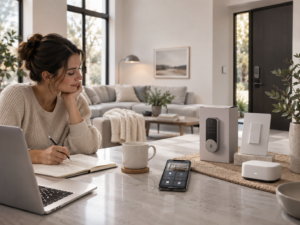
Before You Buy illustration
STEP-BY-STEP ANSWERS

Explore the guides.

01Where should I start with a smart home?Begin with one practical outcome, such as an easier entrance, scheduled lighting or a leak alert. There is no need to automate every room at once. 02What is a good starter setup for an apartment?For an apartment, prioritise a few devices that make daily use easier without permanent alterations. 03What should I consider in a house?A larger home needs more attention to coverage, networking and device placement than a small apartment. 04Do I need a smart home hub?Some Wi-Fi devices connect directly to the router. Zigbee and Z-Wave accessories normally use a compatible controller, while Thread accessories require suitable Thread networking. 05Can I control everything from one app?Sometimes, but this depends on the brands, integrations, supported device types and available features. 06How do I choose a smart lock?Your existing cylinder, handle and door mechanism determine which smart locks can be used safely and reliably. 07Which smart devices should I buy first?Pick devices that deliver value immediately instead of buying a large bundle before testing compatibility. 08Can I add more devices later?Most smart-home systems can grow, but expansion depends on controller capacity, wireless range, and the ecosystem you choose. 09What should I check before buying a smart switch?Smart wall switches depend on the wiring in your home, the existing switch arrangement and the controlled lighting load. 10How do I plan a smart home on a budget?A budget-friendly setup starts with a small number of high-impact devices and avoids unnecessary hubs or subscriptions.
BEFORE YOU BUY / GUIDE 01

Where should I start with a smart home?

Begin with one practical outcome, such as an easier entrance, scheduled lighting or a leak alert. There is no need to automate every room at once.

What to check and do

  1. Choose one everyday problem to solve
  2. Decide whether you want local control, voice assistants or remote access
  3. Check the device protocol and whether a compatible hub is required
  4. Start with one or two devices and test the experience before expanding.
← All Before You Buy guidesNeed personal help?
BEFORE YOU BUY / GUIDE 02

What is a good starter setup for an apartment?

For an apartment, prioritise a few devices that make daily use easier without permanent alterations.

What to check and do

  1. Consider a compatible smart plug, a lamp or bulb, and a door/window sensor
  2. Check Wi-Fi coverage and whether landlord permission is required for modifications
  3. If you rent, prefer devices that can be removed without rewiring
  4. Plan for a hub only when your selected products need one.
← All Before You Buy guidesNeed personal help?
BEFORE YOU BUY / GUIDE 03

What should I consider in a house?

A larger home needs more attention to coverage, networking and device placement than a small apartment.

What to check and do

  1. Map rooms, doors, outdoor areas and current Wi-Fi coverage
  2. Identify areas needing stronger wireless coverage or wired connections
  3. Choose a coordinated ecosystem before purchasing many devices
  4. Prioritise security, lighting, heating and leak detection based on your needs.
← All Before You Buy guidesNeed personal help?
BEFORE YOU BUY / GUIDE 04

Do I need a smart home hub?

Some Wi-Fi devices connect directly to the router. Zigbee and Z-Wave accessories normally use a compatible controller, while Thread accessories require suitable Thread networking.

What to check and do

  1. Read the wireless protocol on each product page
  2. Verify the exact hub and firmware compatibility, not just the logo
  3. Check whether Matter support covers the features you need
  4. Confirm whether routines and remote access work without internet.
← All Before You Buy guidesNeed personal help?
BEFORE YOU BUY / GUIDE 05

Can I control everything from one app?

Sometimes, but this depends on the brands, integrations, supported device types and available features.

What to check and do

  1. List the devices and the apps or platforms you already use
  2. Check support for Apple Home, Google Home, Alexa, Home Assistant or the manufacturer app as relevant
  3. Confirm whether essential features such as notifications, locks and cameras are supported
  4. Keep the original manufacturer app for firmware updates when needed.
← All Before You Buy guidesNeed personal help?
BEFORE YOU BUY / GUIDE 06

How do I choose a smart lock?

Your existing cylinder, handle and door mechanism determine which smart locks can be used safely and reliably.

How do I choose a smart lock?
Example product image. Product-specific details and compatibility requirements may vary by model.

What to check and do

  1. Identify the cylinder and whether the door is multipoint
  2. Check if the handle must be lifted before turning the key
  3. Measure the fitting clearance and cylinder dimensions required by the specific model
  4. Check power, emergency key access, app features and local installation options.
← All Before You Buy guidesNeed personal help?
BEFORE YOU BUY / GUIDE 07

Which smart devices should I buy first?

Pick devices that deliver value immediately instead of buying a large bundle before testing compatibility.

What to check and do

  1. Choose one goal such as energy monitoring, entrance access or lighting
  2. Select a device with clear app support and a documented installation process
  3. Check any required hub and extra accessories
  4. Set a small budget for testing before wider installation.
← All Before You Buy guidesNeed personal help?
BEFORE YOU BUY / GUIDE 08

Can I add more devices later?

Most smart-home systems can grow, but expansion depends on controller capacity, wireless range, and the ecosystem you choose.

What to check and do

  1. Keep a record of the brands, protocols and hub models you use
  2. Check device limits and supported product lists before adding more
  3. Plan reliable coverage in distant rooms
  4. Test any new integration in one room first.
← All Before You Buy guidesNeed personal help?
BEFORE YOU BUY / GUIDE 09

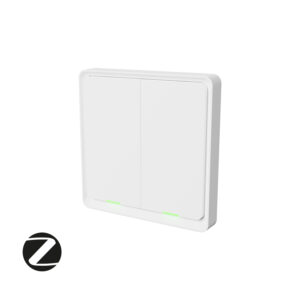
What should I check before buying a smart switch?

Smart wall switches depend on the wiring in your home, the existing switch arrangement and the controlled lighting load.

What should I check before buying a smart switch?
Example product image. Product-specific details and compatibility requirements may vary by model.

What to check and do

  1. Check the product voltage and supported lamp type
  2. Ask a qualified electrician whether a neutral conductor is available and required
  3. Verify box depth, switch dimensions and multi-way switching support
  4. Check whether the model supports dimming if you need it.
← All Before You Buy guidesNeed personal help?
BEFORE YOU BUY / GUIDE 10

How do I plan a smart home on a budget?

A budget-friendly setup starts with a small number of high-impact devices and avoids unnecessary hubs or subscriptions.

What to check and do

  1. Prioritise two or three problems to solve
  2. Compare total cost including hubs, accessories and installation
  3. Check ongoing subscriptions, batteries and power needs
  4. Buy a small compatible starter set, test it and expand gradually.
← All Before You Buy guidesNeed personal help?
HELP TOPIC / 02

Orders & Payments

Find your order, understand payment problems and know when to contact the store.

10 PRACTICAL GUIDES
Orders & Payments illustration
STEP-BY-STEP ANSWERS

Explore the guides.

ORDERS & PAYMENTS / GUIDE 01

How do I place an order?

Choose a product, review its specifications and add it to your cart before proceeding through the checkout.

What to check and do

  1. Verify the exact model, colour and compatibility requirements
  2. Check quantities, shipping address and delivery options
  3. Review the final displayed total and available payment methods
  4. Complete payment and retain the confirmation reference.
← All Orders & Payments guidesNeed personal help?
ORDERS & PAYMENTS / GUIDE 02

Which payment methods are available?

The available methods are the ones displayed at the live checkout for your country, currency and order.

What to check and do

  1. Add your products to the cart and proceed to checkout
  2. Review the payment options and any conditions shown
  3. Use only the secure checkout provided by ERLONSO
  4. Contact support if a desired method is not offered.
← All Orders & Payments guidesNeed personal help?
ORDERS & PAYMENTS / GUIDE 03

What if my payment fails?

A failed payment does not automatically mean the order was successfully placed.

What to check and do

  1. Check for a payment confirmation and an ERLONSO order reference
  2. Verify the card or payment provider has sufficient funds and allows online payments
  3. Retry once if the payment provider explicitly marks the transaction as failed
  4. Contact support if the bank shows a charge but no confirmed order exists.
← All Orders & Payments guidesNeed personal help?
ORDERS & PAYMENTS / GUIDE 04

I did not receive an order confirmation

Confirmation messages can be delayed, filtered or sent to a different address from the one expected.

What to check and do

  1. Search your inbox and spam folder for ERLONSO
  2. Check which email you entered at checkout
  3. Look for an order reference in your account if you have one
  4. Contact support with your approximate order time and the email used.
← All Orders & Payments guidesNeed personal help?
ORDERS & PAYMENTS / GUIDE 05

How do I check my order status?

The order-tracking page is the first place to check whether an order has been received, processed or dispatched.

What to check and do

  1. Open ERLONSO Order Tracking
  2. Enter the information requested by that page
  3. Distinguish order-processing status from carrier-tracking events
  4. Contact support if your order cannot be found after checking the reference.
← All Orders & Payments guidesNeed personal help?
ORDERS & PAYMENTS / GUIDE 06

Can I change my order after placing it?

Changes depend on whether the order has already been processed, packed or shipped.

What to check and do

  1. Contact support as soon as possible with the order reference
  2. State exactly which item, quantity or address needs to change
  3. Wait for confirmation before assuming the change has been applied
  4. If already shipped, ask about the available return process.
← All Orders & Payments guidesNeed personal help?
ORDERS & PAYMENTS / GUIDE 07

How can I cancel an order?

Cancellation options depend on the processing stage and applicable consumer rights.

What to check and do

  1. Check your confirmation and order status
  2. Contact ERLONSO with the reference and cancellation request
  3. Ask whether dispatch has already occurred
  4. If shipped, review the returns policy and applicable withdrawal rights.
← All Orders & Payments guidesNeed personal help?
ORDERS & PAYMENTS / GUIDE 08

Can I receive a business invoice?

An invoice should use the correct business identity and tax details, so collect them before checkout.

What to check and do

  1. Enter your legal company or sole-trader name and billing address accurately
  2. Include a VAT number where required and available
  3. Review the billing details before submitting the order
  4. Contact support promptly if you need an invoice correction.
← All Orders & Payments guidesNeed personal help?
ORDERS & PAYMENTS / GUIDE 09

Are taxes included in product prices?

The final tax calculation can depend on the delivery location and the customer or business billing details.

What to check and do

  1. Check the currency and prices on the product page
  2. Confirm country and address at checkout
  3. Read the final tax and shipping amounts before payment
  4. Retain your invoice for accounting.
← All Orders & Payments guidesNeed personal help?
ORDERS & PAYMENTS / GUIDE 10

What happens if an item is out of stock?

An unavailable item can be temporarily unsellable, delayed or subject to confirmation from the supplier.

What to check and do

  1. Read the stock indication on the product page
  2. Do not assume an exact dispatch date without confirmation
  3. Ask support whether an alternative compatible model is available
  4. If you already ordered, check the order status and proposed next steps.
← All Orders & Payments guidesNeed personal help?
HELP TOPIC / 03

Shipping & Delivery

Tracking, delivery questions and what to do when something goes wrong.

10 PRACTICAL GUIDES
Shipping & Delivery illustration
STEP-BY-STEP ANSWERS

Explore the guides.

SHIPPING & DELIVERY / GUIDE 01

Where do you deliver?

ERLONSO describes European delivery as its service area, but actual checkout availability depends on the destination and product.

What to check and do

  1. Enter your delivery country at checkout
  2. Verify that the specific product can be shipped there
  3. Review any carrier or special-handling restrictions
  4. Contact support before paying if your destination is not offered.
← All Shipping & Delivery guidesNeed personal help?
SHIPPING & DELIVERY / GUIDE 02

How much does shipping cost?

Shipping charges depend on the destination, size, weight and available delivery service.

What to check and do

  1. Add the desired items to the cart
  2. Enter the destination address or postcode
  3. Review shipping methods and their prices at checkout
  4. Confirm the final total before paying.
← All Shipping & Delivery guidesNeed personal help?
SHIPPING & DELIVERY / GUIDE 03

How long will delivery take?

Delivery estimates depend on stock, order processing, carrier routes and destination.

What to check and do

  1. Check product availability before ordering
  2. Review any estimated delivery window displayed at checkout
  3. Allow time for order processing before dispatch
  4. Track the parcel once carrier information is available.
← All Shipping & Delivery guidesNeed personal help?
SHIPPING & DELIVERY / GUIDE 04

How do I track a parcel?

First check whether the order has been dispatched, then use the carrier tracking details if supplied.

What to check and do

  1. Open the ERLONSO order-tracking page
  2. Look for the dispatch email or carrier reference
  3. Follow the tracking link provided with the shipment
  4. Contact support if a dispatched order has no usable tracking details.
← All Shipping & Delivery guidesNeed personal help?
SHIPPING & DELIVERY / GUIDE 05

My parcel is delayed

Delays can be caused by carrier handling, address issues or local delivery conditions.

What to check and do

  1. Check the latest carrier status and estimated delivery date
  2. Verify the delivery address and any attempted-delivery notice
  3. Allow for the carrier update window shown on tracking
  4. If there is no progress, send your order reference and tracking event to support.
← All Shipping & Delivery guidesNeed personal help?
SHIPPING & DELIVERY / GUIDE 06

Why did I receive only part of my order?

Multi-item orders can be shipped in separate packages or arrive at different times.

What to check and do

  1. Compare the received items against the order confirmation
  2. Check whether there are multiple parcel numbers
  3. Review the packing information where available
  4. Contact support with photos of the package and labels if an item appears missing.
← All Shipping & Delivery guidesNeed personal help?
SHIPPING & DELIVERY / GUIDE 07

What happens if I miss delivery?

The carrier may offer redelivery, collection from a pickup point or another instruction.

What to check and do

  1. Read the attempted-delivery notice or tracking event
  2. Follow the carrier instructions for another attempt or collection
  3. Check any pickup deadline
  4. Contact support if the parcel is being returned to sender.
← All Shipping & Delivery guidesNeed personal help?
SHIPPING & DELIVERY / GUIDE 08

What if the package arrives damaged?

Document shipping damage before discarding the packaging or installing the product.

What to check and do

  1. Photograph the outer box, shipping label and damaged area
  2. Check the items carefully without using anything that appears unsafe
  3. Keep all packaging and accessories
  4. Send the images and order reference to support promptly.
← All Shipping & Delivery guidesNeed personal help?
SHIPPING & DELIVERY / GUIDE 09

I received the wrong item or something is missing

Compare the item label and model number with the order confirmation before installing it.

What to check and do

  1. Check all packages and accessory boxes
  2. Photograph the delivered model and packing slip
  3. Do not install or modify an incorrect item
  4. Contact support with the order reference and photos.
← All Shipping & Delivery guidesNeed personal help?
SHIPPING & DELIVERY / GUIDE 10

Does product delivery include installation?

Shipping and installation are separate services unless the order specifically includes both.

What to check and do

  1. Check the order description and quoted services
  2. Review where on-site work is available
  3. Request an installation quotation for your address and scope
  4. Confirm travel fees, equipment and scheduling before accepting.
← All Shipping & Delivery guidesNeed personal help?
HELP TOPIC / 04

Returns & Warranty

Find the right process before sending a product back.

10 PRACTICAL GUIDES
Returns & Warranty illustration
STEP-BY-STEP ANSWERS

Explore the guides.

RETURNS & WARRANTY / GUIDE 01

How do I request a return?

Start by checking the store returns policy and identifying your order.

What to check and do

  1. Locate the order reference and delivery date
  2. Review return eligibility and any applicable statutory withdrawal rights
  3. Contact support for the correct return instructions
  4. Pack the item securely and retain proof of dispatch.
← All Returns & Warranty guidesNeed personal help?
RETURNS & WARRANTY / GUIDE 02

Can I return a product that I opened?

Opening packaging does not automatically determine all consumer rights, but product handling and condition can matter.

What to check and do

  1. Read the returns policy for the type of product
  2. Keep accessories, packaging and documentation where possible
  3. Do not damage or modify the item during assessment
  4. Ask support about the correct return route.
← All Returns & Warranty guidesNeed personal help?
RETURNS & WARRANTY / GUIDE 03

What if I bought an incompatible device?

If an item is unsuitable, first distinguish an incorrect recommendation from a product that was chosen without a compatibility check.

What to check and do

  1. Stop installation until compatibility is clarified
  2. Record the exact product and existing system models
  3. Review the return terms and timing
  4. Ask support whether an alternative or return is available.
← All Returns & Warranty guidesNeed personal help?
RETURNS & WARRANTY / GUIDE 04

Who pays return shipping?

Return shipping responsibilities depend on the reason for return, statutory rules and shop terms.

What to check and do

  1. Check whether the item is faulty, incorrect or simply unwanted
  2. Read the current policy that applies to your order
  3. Ask support for the approved shipping method and cost responsibility
  4. Keep tracking and proof of postage.
← All Returns & Warranty guidesNeed personal help?
RETURNS & WARRANTY / GUIDE 05

When will my refund arrive?

Refund timing depends on the return process, inspection where permitted and the payment provider.

What to check and do

  1. Check that the return has been authorised and delivered
  2. Confirm whether a refund has been issued by the store
  3. Allow for payment-provider processing
  4. Contact support with the order and return reference if the stated window passes.
← All Returns & Warranty guidesNeed personal help?
RETURNS & WARRANTY / GUIDE 06

My product seems faulty. What next?

Start with safe, non-invasive checks and record the symptoms instead of dismantling the device.

What to check and do

  1. Identify the model and power source
  2. Check the status lights, app messages and batteries if accessible
  3. Try only documented troubleshooting steps
  4. Send a short description, photos and order details to support.
← All Returns & Warranty guidesNeed personal help?
RETURNS & WARRANTY / GUIDE 07

How do I make a warranty claim?

A warranty claim needs clear identification of the product, the purchase and the reported failure.

What to check and do

  1. Find your invoice or order confirmation
  2. Note when the problem started and what happened
  3. Capture a photo or screenshot of the error if safe
  4. Contact support for the claim procedure and instructions.
← All Returns & Warranty guidesNeed personal help?
RETURNS & WARRANTY / GUIDE 08

Do I need original packaging?

Original packaging can make safe shipment easier, but statutory rights are not automatically lost just because the box is missing.

What to check and do

  1. Check any instructions for the specific return type
  2. Use sturdy protective packaging if the original is unavailable
  3. Include only the requested accessories
  4. Keep shipment tracking and photographs.
← All Returns & Warranty guidesNeed personal help?
RETURNS & WARRANTY / GUIDE 09

What is the difference between a return and a warranty claim?

A return often concerns a decision not to keep a product; a warranty or conformity claim concerns a product that may be defective.

What to check and do

  1. Identify whether the item is simply unwanted or not working as agreed
  2. Check purchase date and relevant rights
  3. Use the correct support process
  4. Keep correspondence and shipment records.
← All Returns & Warranty guidesNeed personal help?
RETURNS & WARRANTY / GUIDE 10

What details should I send to support?

A complete support request helps avoid repeated questions and speeds up diagnosis.

What to check and do

  1. Provide your order reference and product model
  2. Describe the problem and the steps already tried
  3. Include non-sensitive photos or app error screenshots
  4. State whether you are requesting troubleshooting, replacement or a return.
← All Returns & Warranty guidesNeed personal help?
HELP TOPIC / 05

Compatibility & Hubs

Learn the difference between wireless protocols, controllers and apps.

10 PRACTICAL GUIDES
Compatibility & Hubs illustration
STEP-BY-STEP ANSWERS

Explore the guides.

COMPATIBILITY & HUBS / GUIDE 01

Wi-Fi, Zigbee, Z-Wave, Thread and Matter explained

Wi-Fi, Zigbee, Z-Wave and Thread are connectivity technologies; Matter is an application standard for compatible smart-home devices.

What to check and do

  1. Check which network each product uses
  2. Verify whether a separate coordinator, hub or border router is necessary
  3. Confirm that the controlling app supports the exact device type
  4. Plan for range and reliability, not just advertised features.
← All Compatibility & Hubs guidesNeed personal help?
COMPATIBILITY & HUBS / GUIDE 02

Will this device work with my system?

Compatibility needs to be checked against exact product models and software versions.

What to check and do

  1. Write down the controller or hub brand and model
  2. Look for the device in its supported-device list
  3. Check the required protocol and software version
  4. Ask support before purchase if there is no confirmed listing.
← All Compatibility & Hubs guidesNeed personal help?
COMPATIBILITY & HUBS / GUIDE 03

Does it work with Apple Home?

Only products that explicitly support Apple Home or a suitable integration should be assumed to appear in the Home app.

What to check and do

  1. Check the product documentation for Apple Home, HomeKit or Matter support
  2. Verify any required bridge or Thread network
  3. Check which device features Apple Home exposes
  4. Keep the manufacturer app for setup or updates when needed.
← All Compatibility & Hubs guidesNeed personal help?
COMPATIBILITY & HUBS / GUIDE 04

Will it work with Google Home or Alexa?

Voice and app integrations are model-specific and sometimes region-dependent.

What to check and do

  1. Look for explicit integration support on the product listing
  2. Confirm whether a manufacturer account or bridge is needed
  3. Verify the commands and device categories supported
  4. Consider privacy and internet requirements.
← All Compatibility & Hubs guidesNeed personal help?
COMPATIBILITY & HUBS / GUIDE 05

Can different brands work together?

Different brands can cooperate through a supported controller, platform or standard, but not every feature is shared.

What to check and do

  1. Choose the central platform you want to use
  2. Check individual device compatibility
  3. Verify hub, bridge and firmware needs
  4. Test a small group before expanding to the whole house.
← All Compatibility & Hubs guidesNeed personal help?
COMPATIBILITY & HUBS / GUIDE 06

What is a Zigbee hub?

A Zigbee hub or coordinator connects compatible Zigbee accessories to a control system or app.

What to check and do

  1. Check which Zigbee profiles and devices the hub supports
  2. Position the hub centrally where practical
  3. Avoid large metal obstacles and excessive distance
  4. Pair accessories according to the manufacturer instructions.
← All Compatibility & Hubs guidesNeed personal help?
COMPATIBILITY & HUBS / GUIDE 07

Why do some devices need 2.4 GHz Wi-Fi?

Many low-power IoT devices use 2.4 GHz Wi-Fi for broad compatibility and reach.

What to check and do

  1. Check the radio band listed for the device
  2. Ensure a compatible network is available during setup
  3. Use the correct security configuration recommended by its maker
  4. Keep the device within reliable signal range.
← All Compatibility & Hubs guidesNeed personal help?
COMPATIBILITY & HUBS / GUIDE 08

Does a smart home work without internet?

Some devices and automations operate locally, while cloud-dependent features may stop without internet.

What to check and do

  1. Check whether the hub supports local scenes and scheduling
  2. Identify which devices depend on cloud APIs
  3. Test essential routines during a planned internet outage if safe
  4. Keep physical controls available for critical functions.
← All Compatibility & Hubs guidesNeed personal help?
COMPATIBILITY & HUBS / GUIDE 09

How do I check compatibility before buying?

The most reliable check uses an exact product-to-product compatibility list, not broad marketing claims.

What to check and do

  1. Record the model number of your existing device and hub
  2. Read the supported protocol and regional version
  3. Check manufacturer compatibility and setup requirements
  4. Contact support with the list before ordering.
← All Compatibility & Hubs guidesNeed personal help?
COMPATIBILITY & HUBS / GUIDE 10

How do I avoid incompatible purchases?

A small compatibility checklist prevents expensive mistakes when assembling a smart home.

What to check and do

  1. Choose the controller and ecosystem first
  2. Verify every item against it before buying
  3. Include bridges and neutral-wire or mounting requirements in the budget
  4. Prefer a small tested bundle over an unverified mix.
← All Compatibility & Hubs guidesNeed personal help?
HELP TOPIC / 06

Installation & Measurements

Pre-purchase checks, correct placement and when to use a professional.

10 PRACTICAL GUIDES
Installation & Measurements illustration
STEP-BY-STEP ANSWERS

Explore the guides.

INSTALLATION & MEASUREMENTS / GUIDE 01

How do I measure my door for a smart lock?

A smart lock compatibility check starts with the existing cylinder, handle and the physical space around them.

How do I measure my door for a smart lock?
Example product image. Product-specific details and compatibility requirements may vary by model.

What to check and do

  1. Identify the lock and cylinder type
  2. For Euro-profile cylinders, measure from the retaining screw centre to each cylinder end as required by the exact model
  3. Check handle clearance and whether the handle must be lifted to lock
  4. Photograph the inside hardware and door edge without exposing security details.
← All Installation & Measurements guidesNeed personal help?
INSTALLATION & MEASUREMENTS / GUIDE 02

Is my door suitable for a smart lock?

Compatibility depends on the door mechanism, cylinder, handle and the smart lock mounting system.

Is my door suitable for a smart lock?
Example product image. Product-specific details and compatibility requirements may vary by model.

What to check and do

  1. Check whether your door uses a key or thumbturn from inside
  2. Identify any multipoint mechanism and lift-up handle
  3. Compare door clearances to the maker compatibility guide
  4. Check emergency access and required power options.
← All Installation & Measurements guidesNeed personal help?
INSTALLATION & MEASUREMENTS / GUIDE 03

What is a Euro-profile cylinder?

A Euro-profile cylinder is a common removable lock cylinder shape used in many European doors.

What to check and do

  1. Look at the keyhole and lock body shape
  2. Identify the retaining screw on the door edge
  3. Measure the inside and outside lengths separately if replacement is planned
  4. Check that the selected product supports the cylinder dimensions.
← All Installation & Measurements guidesNeed personal help?
INSTALLATION & MEASUREMENTS / GUIDE 04

What is a multipoint door lock?

A multipoint lock secures the door at several positions along the edge, often with hooks, rollers or bolts.

What is a multipoint door lock?
Example product image. Product-specific details and compatibility requirements may vary by model.

What to check and do

  1. Inspect the door edge for multiple locking points
  2. Check whether lifting the handle engages them
  3. Confirm how a smart lock can operate the final key turn
  4. Ask a locksmith about any unclear mechanism.
← All Installation & Measurements guidesNeed personal help?
INSTALLATION & MEASUREMENTS / GUIDE 05

What should I check before a smart wall switch?

The correct switch depends on supply voltage, box depth, wiring and the type of light or equipment it controls.

What to check and do

  1. Note the model, load type and intended function
  2. Ask a qualified electrician to check whether a neutral wire is present
  3. Verify single-way versus multi-way control and dimmer requirements
  4. Compare mounting dimensions with the electrical box.
← All Installation & Measurements guidesNeed personal help?
INSTALLATION & MEASUREMENTS / GUIDE 06

What is a neutral wire?

A neutral conductor is part of many electrical circuits and may be needed to power certain smart switch electronics.

What to check and do

  1. Check whether the specific product requires neutral
  2. Have a qualified electrician inspect the actual circuit
  3. Verify the product wiring diagram and local standards
  4. Select a compatible solution rather than guessing from wire colours.
← All Installation & Measurements guidesNeed personal help?
INSTALLATION & MEASUREMENTS / GUIDE 07

Where should I put door and window sensors?

A contact sensor has a sensor body and magnet that must be aligned within the maker specified gap.

What to check and do

  1. Choose an indoor area protected from moisture unless the product is rated otherwise
  2. Mount the body and magnet on the moving and fixed parts as documented
  3. Check alignment before permanent adhesive or drilling
  4. Open and close the door to verify events in the app.
← All Installation & Measurements guidesNeed personal help?
INSTALLATION & MEASUREMENTS / GUIDE 08

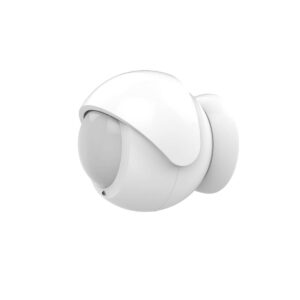
Where should I install a motion sensor?

Motion sensing depends on viewing angle, mounting height and environmental interference.

Where should I install a motion sensor?
Example product image. Product-specific details and compatibility requirements may vary by model.

What to check and do

  1. Identify the detection field shown by the manufacturer
  2. Avoid pointing directly at radiators, sunlit windows or moving curtains when they cause false triggers
  3. Test detection at several walking positions
  4. Fix the sensor after the placement has been validated.
← All Installation & Measurements guidesNeed personal help?
INSTALLATION & MEASUREMENTS / GUIDE 09

Where should the hub be placed?

The hub should have reliable power and network access and should not be hidden behind metal objects.

What to check and do

  1. Choose a reasonably central location
  2. Avoid dense concrete walls and metal cabinets
  3. Keep away from wireless interference sources where possible
  4. Test sensor connectivity in distant rooms before final mounting.
← All Installation & Measurements guidesNeed personal help?
INSTALLATION & MEASUREMENTS / GUIDE 10

When do I need professional installation?

Seek professional help when the job involves mains wiring, complex door hardware, safety systems or changes to fixed installations.

What to check and do

  1. Identify whether electrical or mechanical modifications are required
  2. Confirm local qualifications and permitted work
  3. Agree the scope, materials and any travel charges in writing
  4. Keep manufacturer instructions for the installer.
← All Installation & Measurements guidesNeed personal help?
HELP TOPIC / 07

Apps & Automation

Rooms, schedules, family access and simple useful automations.

10 PRACTICAL GUIDES
Apps & Automation illustration
STEP-BY-STEP ANSWERS

Explore the guides.

APPS & AUTOMATION / GUIDE 01

How do I add a device to its app?

Pairing steps are different for each model, but the general sequence is similar.

What to check and do

  1. Install the correct manufacturer app
  2. Ensure your phone has required Bluetooth, Wi-Fi or local permissions
  3. Put the device into its documented pairing mode
  4. Follow the app instructions and give the device a clear room-based name.
← All Apps & Automation guidesNeed personal help?
APPS & AUTOMATION / GUIDE 02

How do I organise devices into rooms?

Clear room names make everyday control and troubleshooting easier.

What to check and do

  1. Create rooms using familiar names such as Living Room and Entrance
  2. Assign each device to its physical location
  3. Give switches and sensors descriptive names
  4. Avoid duplicate labels that confuse voice assistants.
← All Apps & Automation guidesNeed personal help?
APPS & AUTOMATION / GUIDE 03

How do I share access with family?

Share access through the app or platform permission controls instead of handing out your own password.

What to check and do

  1. Invite family members using their own accounts where supported
  2. Review user roles and lock permissions carefully
  3. Test which devices each person can operate
  4. Remove access promptly when no longer needed.
← All Apps & Automation guidesNeed personal help?
APPS & AUTOMATION / GUIDE 04

How do I create my first automation?

A useful automation combines a trigger, optional conditions and one or more actions.

What to check and do

  1. Choose a simple event such as a door sensor opening
  2. Add a sensible condition such as after sunset
  3. Choose a low-risk action such as switching on a hallway light
  4. Test several times and confirm it still works when the network is busy.
← All Apps & Automation guidesNeed personal help?
APPS & AUTOMATION / GUIDE 05

How do I set schedules and timers?

Schedules repeat at fixed times while timers run after a specified interval.

What to check and do

  1. Choose the device and desired action
  2. Set time, weekdays and time zone in the app
  3. Check daylight-saving and travel behaviour
  4. Test the schedule and keep a manual override available.
← All Apps & Automation guidesNeed personal help?
APPS & AUTOMATION / GUIDE 06

How can lights switch on automatically?

Lights can be triggered by motion, door opening, presence or a schedule depending on the devices.

How can lights switch on automatically?
Example product image. Product-specific details and compatibility requirements may vary by model.

What to check and do

  1. Choose a trigger sensor supported by your platform
  2. Add conditions such as darkness or a time window
  3. Set light level and an appropriate turn-off delay
  4. Test for unwanted triggers and adjust.
← All Apps & Automation guidesNeed personal help?
APPS & AUTOMATION / GUIDE 07

How do I set sensor notifications?

Alerts require the device, hub and mobile app to support the relevant notification event.

What to check and do

  1. Enable notifications in the device app
  2. Allow notification permissions on your phone
  3. Choose critical events rather than every status change
  4. Test the alert and check whether it needs internet access.
← All Apps & Automation guidesNeed personal help?
APPS & AUTOMATION / GUIDE 08

Can I control devices when away from home?

Remote access requires a compatible bridge, platform or cloud path depending on the product.

What to check and do

  1. Check remote access support for each model
  2. Ensure the controller has reliable internet where needed
  3. Enable account security such as two-factor authentication
  4. Test from mobile data rather than your home Wi-Fi.
← All Apps & Automation guidesNeed personal help?
APPS & AUTOMATION / GUIDE 09

How do I update device firmware?

Firmware updates can resolve bugs and improve compatibility, but should follow the device manufacturer process.

What to check and do

  1. Check the model and current firmware version
  2. Read release notes and back up settings where supported
  3. Keep mains-powered products powered during the update
  4. Test connectivity and automations afterward.
← All Apps & Automation guidesNeed personal help?
APPS & AUTOMATION / GUIDE 10

How do I create a night mode?

Night mode combines calmer lighting and reduced notifications with a safe manual override.

What to check and do

  1. Define which rooms are affected and at what time
  2. Set soft low-intensity lighting if supported
  3. Exclude essential safety alerts from muting
  4. Test the routine across weekdays and weekends.
← All Apps & Automation guidesNeed personal help?
HELP TOPIC / 08

Troubleshooting

Connection errors, battery problems, resets and support preparation.

10 PRACTICAL GUIDES
Troubleshooting illustration
STEP-BY-STEP ANSWERS

Explore the guides.

TROUBLESHOOTING / GUIDE 01

Why is my device offline?

An offline status can indicate power, Wi-Fi, hub connectivity or a temporary cloud-service problem.

What to check and do

  1. Check the device power or battery indicator
  2. Check whether nearby devices or the hub are online
  3. Move closer to the router or controller where practical
  4. Restart only according to the maker instructions.
← All Troubleshooting guidesNeed personal help?
TROUBLESHOOTING / GUIDE 02

My Wi-Fi device will not pair

Pairing failures often come from network mismatch, weak signal or the device not being in pairing mode.

What to check and do

  1. Confirm whether the model requires a 2.4 GHz network
  2. Verify phone permissions, password and Wi-Fi security settings
  3. Bring the device near the router for initial pairing
  4. Follow the documented pairing mode and retry once.
← All Troubleshooting guidesNeed personal help?
TROUBLESHOOTING / GUIDE 03

My Zigbee sensor disconnects

Battery, range and mesh routing are frequent contributors to intermittent Zigbee sensor connectivity.

What to check and do

  1. Check battery condition and orientation
  2. Test the device close to its hub
  3. Avoid metal enclosures and thick walls
  4. Review nearby powered repeaters and the hub supported-device list.
← All Troubleshooting guidesNeed personal help?
TROUBLESHOOTING / GUIDE 04

My smart lock will not lock correctly

Mechanical resistance, calibration or unsuitable cylinder geometry can prevent reliable locking.

My smart lock will not lock correctly
Example product image. Product-specific details and compatibility requirements may vary by model.

What to check and do

  1. Check whether the door locks smoothly by hand with the door open
  2. Inspect for frame misalignment without forcing the motor
  3. Verify battery or charging status
  4. Repeat manufacturer calibration only after the mechanical issue is resolved.
← All Troubleshooting guidesNeed personal help?
TROUBLESHOOTING / GUIDE 05

Apple Home says No Response

This message can appear when an accessory, bridge, Thread network or home hub is unavailable.

What to check and do

  1. Check the device in its manufacturer app
  2. Confirm your phone and home hub are online
  3. Restart the affected accessory and bridge as documented
  4. Check firmware and Apple Home configuration before considering a reset.
← All Troubleshooting guidesNeed personal help?
TROUBLESHOOTING / GUIDE 06

My camera is online but video will not load

Camera live video problems can involve the local network, internet uplink or app permissions.

What to check and do

  1. Check that the camera is powered and in its manufacturer app
  2. Test from home Wi-Fi and mobile data separately
  3. Verify Wi-Fi strength and network bandwidth
  4. Check for app, firmware or cloud-service issues.
← All Troubleshooting guidesNeed personal help?
TROUBLESHOOTING / GUIDE 07

My automation is not running

When a routine fails, isolate the trigger, conditions and action one at a time.

What to check and do

  1. Check that the trigger event appears in the app
  2. Review conditions such as time, presence or sunset
  3. Test the target device manually
  4. Check whether the controller or internet connection is required.
← All Troubleshooting guidesNeed personal help?
TROUBLESHOOTING / GUIDE 08

Why does the battery run out quickly?

Frequent radio communication, weak signal, temperature and reporting intervals can affect battery life.

What to check and do

  1. Use the specified battery type and check its installation
  2. Review signal quality and distance to the hub
  3. Check reporting or motion sensitivity settings
  4. Inspect the environment for cold or frequent triggering.
← All Troubleshooting guidesNeed personal help?
TROUBLESHOOTING / GUIDE 09

When should I factory reset a device?

Factory reset deletes pairing and settings and should usually be a last resort, not the first troubleshooting step.

What to check and do

  1. Check power, battery, network and known service issues first
  2. Back up relevant settings or integration codes when possible
  3. Consult the exact model instructions for reset effects
  4. Plan to re-pair and rebuild automations afterward.
← All Troubleshooting guidesNeed personal help?
TROUBLESHOOTING / GUIDE 10

What should I include in a support request?

A complete report helps support identify the correct device and failure without repeated messages.

What to check and do

  1. Include product brand and full model number
  2. Note the app, hub and firmware versions if available
  3. Describe the exact error and when it occurs
  4. Add screenshots or photos that do not expose private credentials.
← All Troubleshooting guidesNeed personal help?
PERSONAL SUPPORT

Still need help?

Tell us about your device or project and we will help you find the right next step.